

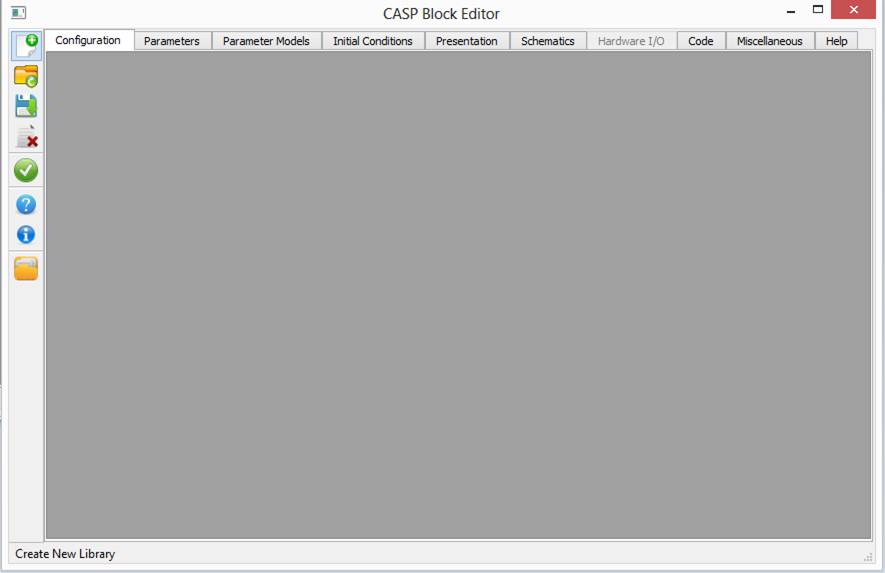
Block Editor allows user to create new blocks (both primary blocks and secondary blocks) or modify existing blocks created by user. Block Editor is accessible from Tools->Block Tools->Block Editor menu item in CASP main tool bar. Block Editor window is shown below.
Note that if you are editing a block that is already in use by CASP model, then to reflect the changes of the modified block in the model
· Delete the block instance from the model and create a new instance of the block in place of deleted block or
· Restart CASP main program
Status
Bar Tab
Bar Tool
Bar Title
Bar




§ Title Bar
Title bar at the top of the window displays application defined icon followed by a line of text indicating window title and current block path. The title bar makes it possible for the user to move the window using a mouse or other pointing device. At right hand corner, title bar contain three buttons to minimize, maximize or restore, and close the window.
§ Tool Bar
It is located at left side of the window and contains vertically arranged tool buttons to create, open, save, close and validate block.
§ Tab Bar
It is located below title bar and contains tabs to configure various block configuration parameters listed below. These are further elaborated in following sections.
|
Configuration |
To configure block primary configuration parameters |
|
Parameters |
To configure block parameter configuration |
|
Parameter Models |
To configure block parameter model configuration |
|
Initial Conditions |
To configure block initial condition configuration |
|
Presentation |
To configure block presentation configuration |
|
Schematics |
To configure secondary block schematics configuration |
|
Code |
To configure primary block code configuration |
|
Miscellaneous |
To configure block miscellaneous configuration |
|
Help |
To configure block help configuration |
§ Status Bar
It is located at bottom of the window and displays status information of application current state.