

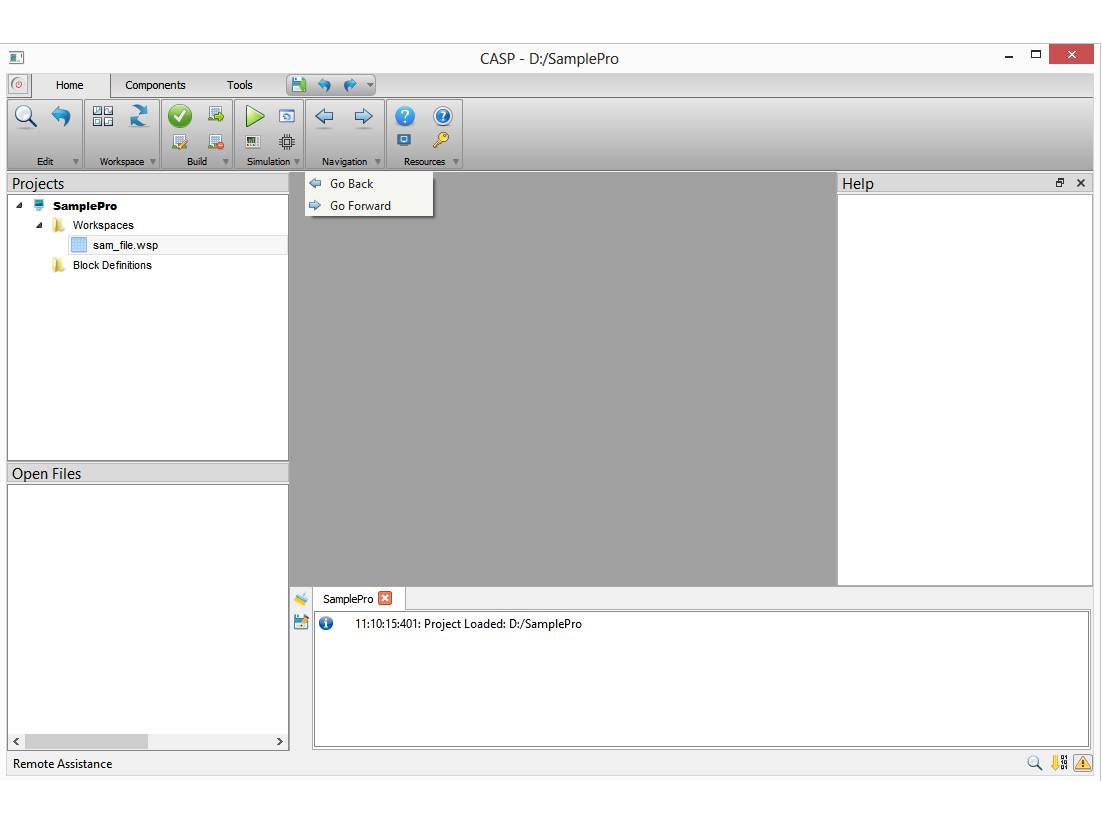
To start CASP, please follow the instructions mentioned in this section. CASP main window is shown below
Tool
Menu Status
Bar Message
Button Search
Button Bottom
Window Quick
Access Bar Main
Tool Bar Start
Button Application
Title Bar Right
Window Left
Window Centre
Window


Build
Button
· Application Title Bar
Application title bar at the top of the window displays application defined icon followed by a line of text indicating window title and active project path. The title bar makes it possible for the user to move the window using a mouse or other pointing device. At right hand corner, title bar contain three buttons to minimize, maximize or restore, and close the window.
· Quick Access Bar
The window below application title bar is quick access bar. It contains grouped tab buttons for quick access of corresponding tool buttons/menu items. Left most button in quick access bar is Start button.
· Main Tool Bar
It is located below quick access bar and contains grouped tool buttons and menus.
· Centre Window
Centre window displays project work space file that is opened by user. Standard operations such as zooming & panning can be performed.
· Left Window
Left window consist of two sub-windows.
§ Top part sub-window displays project tree view. User can open more than one project. However, only one project can be active at a time. Active project is displayed with bold text.
§ Bottom part sub-window displays opened workspace files. Unsaved file names are appended with ‘*’.
· Right Window
Right window is dedicated for displaying user selected block documentation. Refer Help System for further information.
· Bottom Window
Bottom window embeds
§ Message Window: This window is displayed when Message Window button is clicked on status bar. It displays general messages and messages related to workspace during project build.
§ Build Window: This window is displayed when Build Window button is clicked on status bar. It displays messages during project build & compilation.
§ Search Window: This window is displayed when Search Window button is clicked on status bar. It is used to search blocks in active project.
· Status Bar
Status bar display status information at the bottom of the application window. Status bar is divided into panes indicated below:
§ Help/Description Pane - mainly indicates status help and description of selected menu commands.
§ Progress Pane – indicates progress of lengthy operation such as project build and compilation.
§ Button Pane – displays message, build and search buttons.