

Remote Target Viewer (RTViewer) is a standalone application that allows user to remotely view and control simulation panel (SimPanel) program running on the target. It can also be configured as a server that enables remote viewing and control of the target.
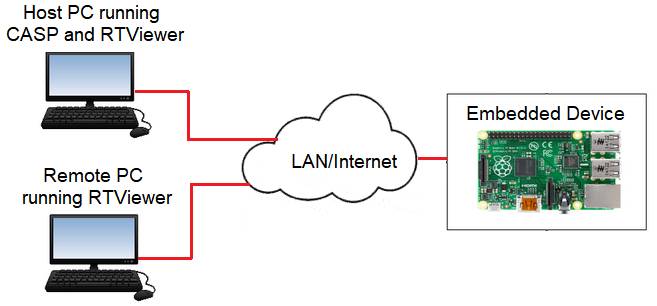
Getting Started
· Before starting the RTViewer client program, RTViewer server shall be running on the target. RTViewer server can be started in two ways
1. As part of Simulation Panel Program: Refer here on how to enable the RTViewer server from within the simulation panel.
2. Standalone RTViewer Program: Current topic.
· On supported platforms, the executable file (RTViewer.exe) is present along with the other CASP binaries. The RTViewer program can be started by directly running the RTViewer executable file. Alternately, it can also be started from the CASP main program menu item (Tools->Misc.Tools->RTViewer). Upon starting, the below window is displayed.
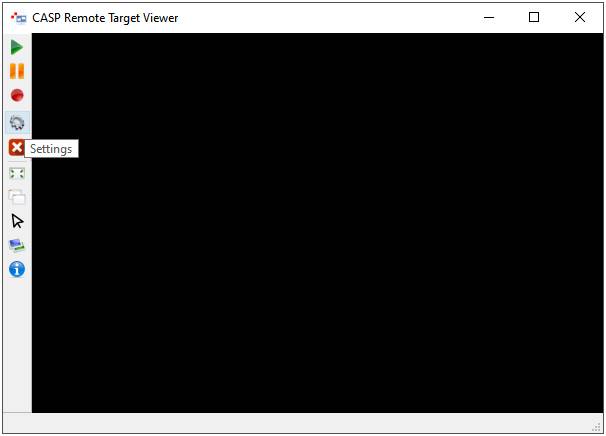
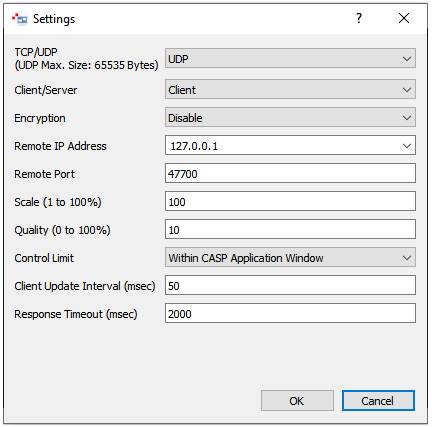
· Before starting the client/server process, it should be properly configured Click on ‘Settings’ button to display settings dialog box as shown in below figure.
|
TCP/UDP |
Select between TCP/UDP. TCP is generally preferred. UDP may be used in local networks in cases where TCP is having issues. |
|
Client/Server |
Select between RTViewer client or server |
|
Encryption |
Enable/disable encryption. For local networks this option can be disabled as encryption consumes appreciable CPU cycles. This could be of concern when the server is running on an embedded platform. However, if the client and server are connected over the internet it is preferable to enable this option. |
|
Local IP Address and Port |
Enter local IP address and port. Applicable only for server. Better leave it to default. |
|
Remote IP Address and Port |
Enter remote server IP address and port. Applicable only for client. |
|
Scale and Quality factors |
Enter suitable scale and quality factors. Higher values demand a high-speed network connection, while lower values reduce image quality. Applicable only on client program. These parameters can be changed during runtime. |
|
Control Limit |
Within CASP Application Window: Limits the control to within the CASP application window (either it is a simulation panel window or a RTViewer server window). This option does not require admin privileges. However, the control functions are limited. Full Screen: When this option is enable full screen control including other applications. This option requires admin privileges. This option is only applicable on client. This option can be changed during runtime. |
|
Client Update Interval (msec) |
Indicates update interval. Lower values may require high-speed network connection. This option is only applicable on client and can be changed during runtime. |
|
Response Timeout (msec) |
Useful to restart the connection when client-server connection breaks. This option is only applicable on client and can be changed during runtime. |
· Other options that are available on the left tool bar
|
Capture Full Screen |
Enable full screen capture. Requires high-speed network connection. This option is only applicable to client and can be changed during runtime. |
|
Sync. Remote Window Size |
With this option enabled, as the client RTViewer window is resized, server side window (either simulation panel window or RTViewer window) also resizes with same window dimensions. Please note that higher window sizes consumes more network bandwidth. This option is only applicable on client and can be changed during runtime. |
|
Enable Remote Mouse & Keyboard Control |
Enable/disable control. This option is only applicable on client and can be changed during runtime. |
|
Always on Top |
When clicked, the window always stays on top. |