

Presentation configuration is used to configure front end block representation such as block title, dimensions, ports, image etc. The interface is described below
Image text
configuration based on parameter entity Image
configuration based on parameter entity
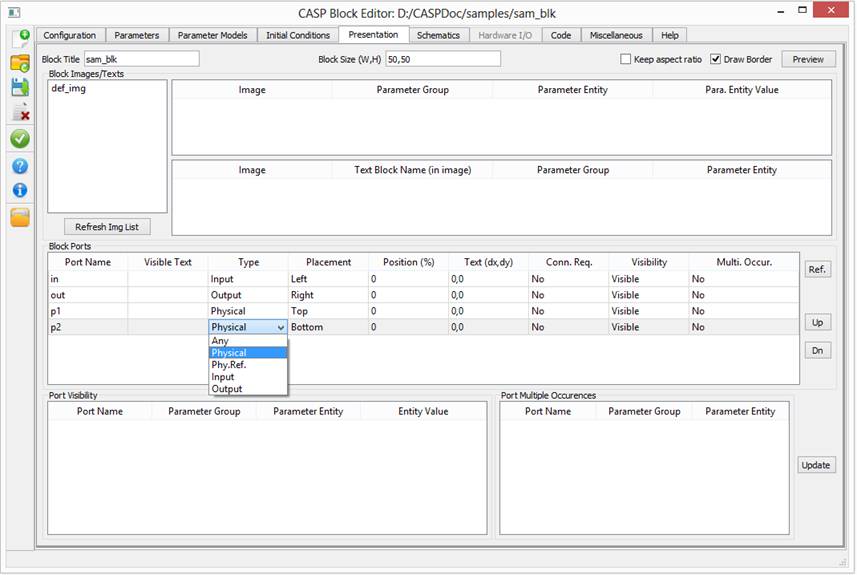
· Block Title: Enter block title that will be displayed along with block. If this field is empty then block name is used in place of block title.
· Block Size: Indicates box size (Width x Height) in pixels. Typical values are between 40x40 to 60x60. Options such as keep aspect ratio and draw border can be used to alter its representation.
· Preview: This button is used to show blocks preview.
· Block Image Configuration: Creating and modifying block images is explained here. The created images are automatically imported by pressing ‘Refresh Img List’ push button.
o Image configuration based on parameter entity: Allows displaying particular block image out of available images based on user selected block parameter. Right click inside the window (shown in above figure) and select ‘Add Row’. Double click in each column of added row and select relevant option.
o Image text configuration based on parameter entity: Allows displaying specified block image text (embedded inside block image) based on user selected block parameter. Right click inside the window (shown in above figure) and select ‘Add Row’. Double click in each column of added row and select relevant option.
· Block Ports Configuration: Used to configure block ports. The procedure to add/edit/delete block ports is described below
o Right click inside the window (shown in above figure) and select ‘Add Row’. Double click in each column of added row and add relevant data or select relevant option.
o For secondary blocks, block port names are taken from block’s model. Refer block Schematics Configuration section for further information.
o Position (%), Text, Connection Required (Conn. Req.), Visibility and Multiple Occurrence (Multi. Occur.) can be omitted for novice user.
· Port Visibility: Allows user to control block ports visibility based on user selected block parameters. Procedure is described below
o During block port configuration select ‘Parameter Based’ option in port visibility.
o Press ‘Update’ button (shown bottom right in above figure)
o Right click inside Port Visibility Window (shown in above figure) and select ‘Add Row’. Double click in each column of added row and select relevant option
· Port Multiple Occurrences: It is applicable only for CASP intrinsic blocks.