

User interface to configure layout
of simulation panel can be accessed from
Home->Simulation->Simulation->Configure Simulation Panel menu item or
by pressing  icon in main tool bar.
Dialog Box and Parameters
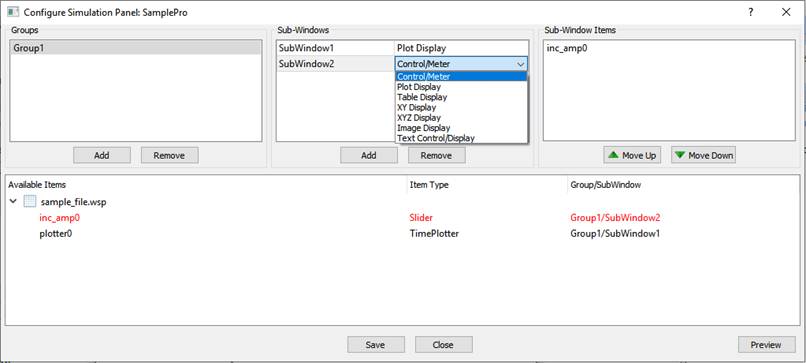
|
Groups |
Add |
Adds new group to simulation panel |
|
Remove |
Delete selected group from simulation panel |
|
|
Change Name |
Double click on selected group to modify its name |
|
|
Sub-Windows |
Add |
Adds new sub-window to selected group |
|
Remove |
Deletes selected sub-window from selected group |
|
|
Change Name |
Double click on selected sub-window to modify its name |
|
|
Assign sub-window Type |
Double click on type and select sub-window type |
|
|
Sub-Window Items |
Arrange Sub-window items |
Sub-Window items can be arranged/sorted by pressing Move Up or Move Down buttons |
|
Available Items |
- |
Available items are displayed in this window only when user assigns them from respective block parameter dialog. |
|
Preview |
- |
User can preview layout in simulation panel. |