· Adding Blocks
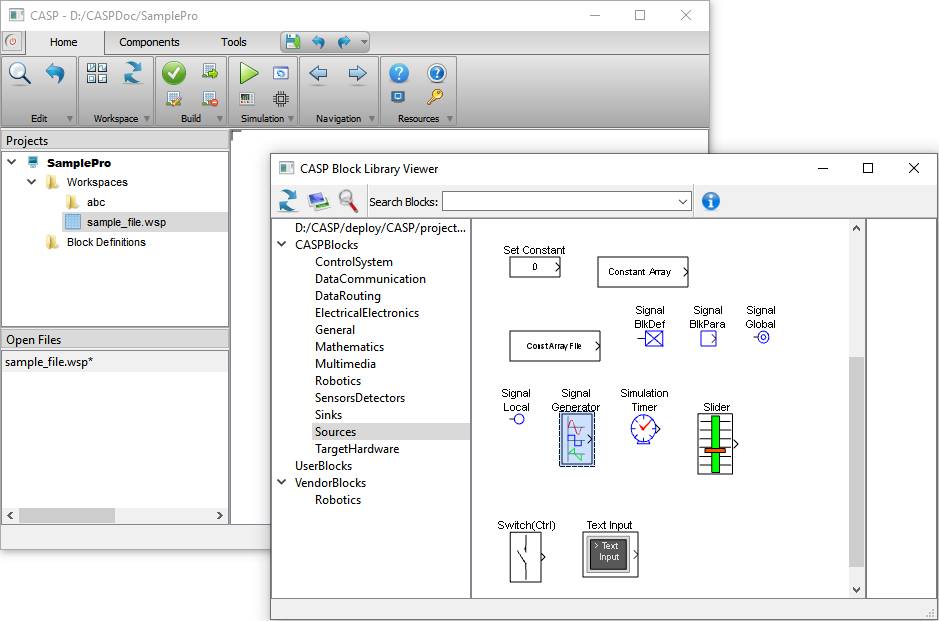
Blocks are added to workspace from Block
Library Viewer. Block library viewer can be accessed by clicking  icon from main tool bar. User can drag
selected block from block library viewer into project workspace to add/insert
block.
icon from main tool bar. User can drag
selected block from block library viewer into project workspace to add/insert
block.
Block
Library Browser

· Connecting Blocks
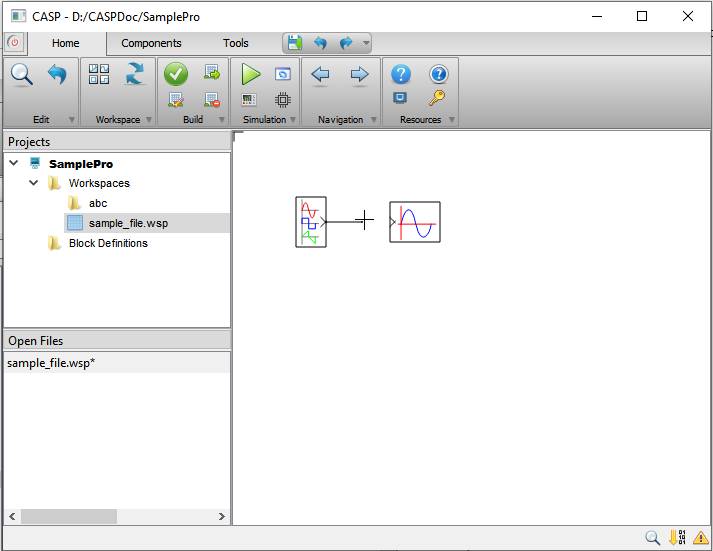
Block ports can be connected using connecting wires.
§ Connection mode is invoked when user takes mouse cursor over block port to be connected and clicks left mouse button at the time when mouse cursor changes to plus sign.
§ User can then drag the mouse to second port to be connected and press right click to connect.
§ Pressing right click terminates current connection mode.
Connecting
Blocks

· Configuring Block Parameters
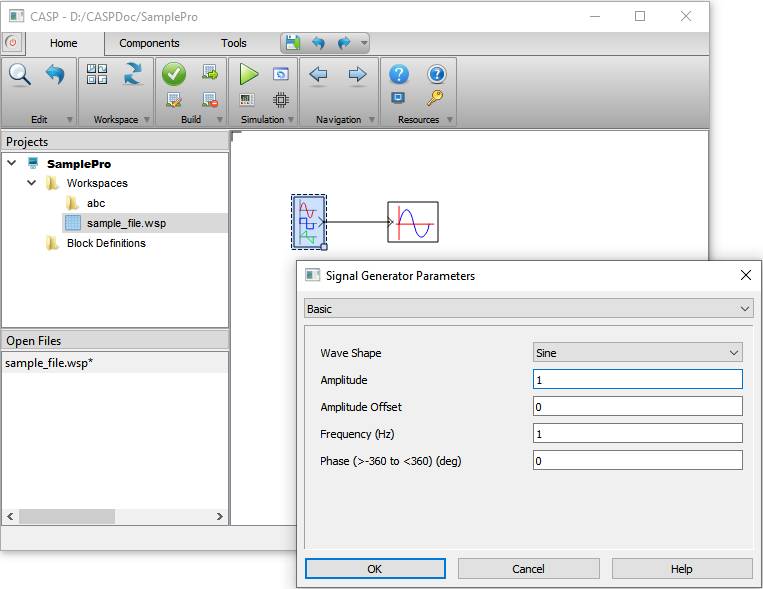
Block parameters are modified to change block behaviour. Block parameter window is invoked by double clicking on selected block.
· Setting Block Name
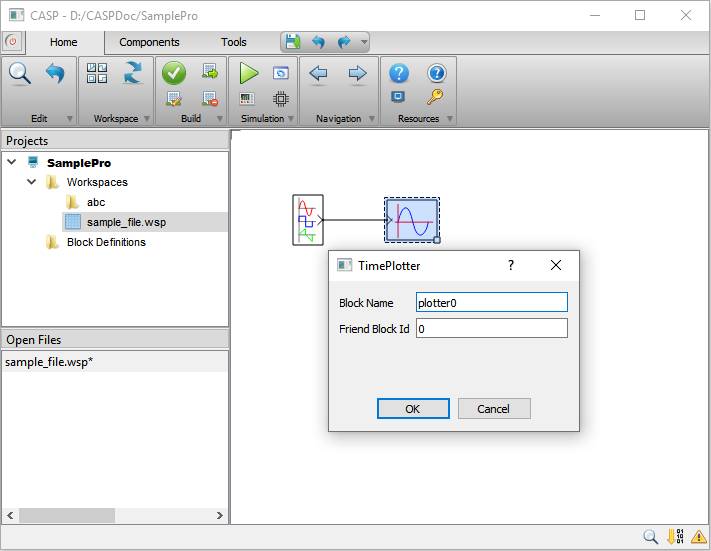
Blocks displayed in simulation panel shall be assigned unique name. Right click on selected block and select ‘Edit Configuration’ menu item. A dialog window is displayed where user can enter block name.
· Adding Blocks To Simulation Panel
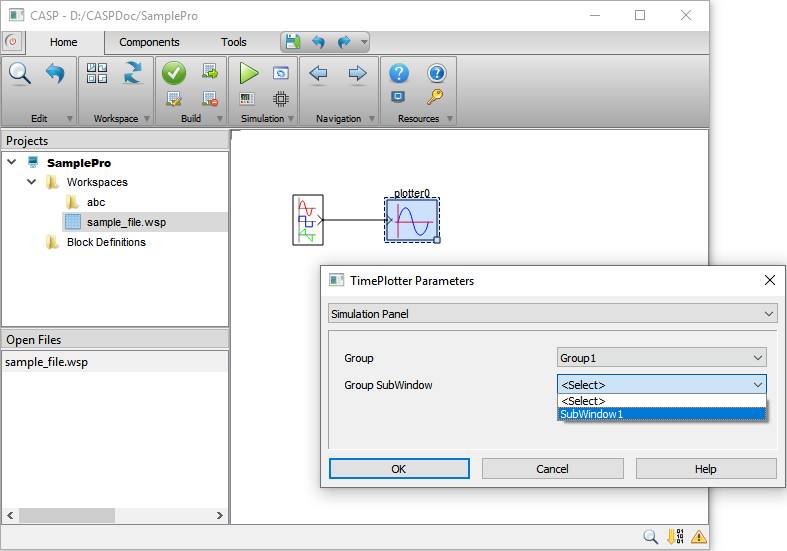
Simulation panel blocks such as plotter (in below show figure) shall assigned to simulation panel window for displaying simulation results. For adding a block to simulation panel double click on selected block to display its block parameters. Select ‘Simulation Panel’ and select Group and its Sub-Window where block has to be added. Simulation Panel shall be configured before adding any block to the panel.